Verify with Credence Onboarding & Generating SDK Key
Register on the Verify with Credence portal and generate your SDK license key. This is a one-time setup required before integrating any Tap2iD SDK or Cloud SDK into your application.
Register / Login on Verify with Credence Portal
Sign Up
Visit the Credence ID website at credenceid.com.
Choose a Sign Up Method
Enter your email address in the field provided, or click the Google or Apple icon to sign up using your existing account.
Email Confirmation (manual email only)
If you registered using your email address, check your inbox for a confirmation email and click the provided link to verify your account.
Enter User Details
Provide the required user details in the registration form.
Enter Business Details
Fill in your business information as requested.
Set Your Password
Create a secure password and confirm it to protect your account.
Upload Logo (Optional)
You may upload your business or organization logo to personalize your account.
Login
Once your account is created, navigate to the Login Page and sign in with your chosen method.
Generate Tap2iD SDK Key for Inperson Verification
Navigate to License Management
After logging in, open the License Management from the top navigation.
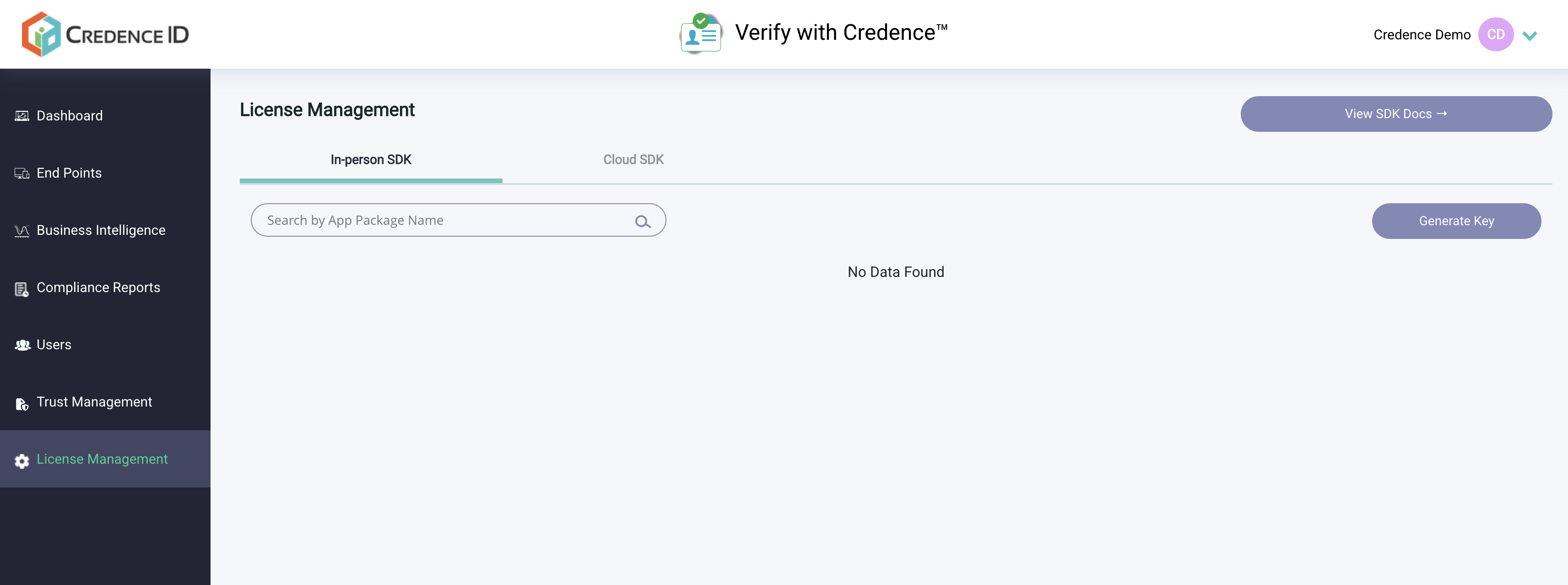
Start the Key Generation Process
In the In-person SDK tab, click Generate Key to begin the key generation process.
Select Application Type
Choose the platform you are developing for — Windows, Android, or iOS — to ensure the correct SDK key is generated for your application.
Enter Package Name
Provide your application's package name. Keep the following in mind:
- App Package Name — must match the package name used in your app exactly
- Only unique package names are accepted
- Two apps with the same package name under one account are not permitted
Generate License Key
Once you complete the key generation process successfully, your license key will be displayed on screen. Copy and securely store this key — you will need it to activate the SDK in your application.
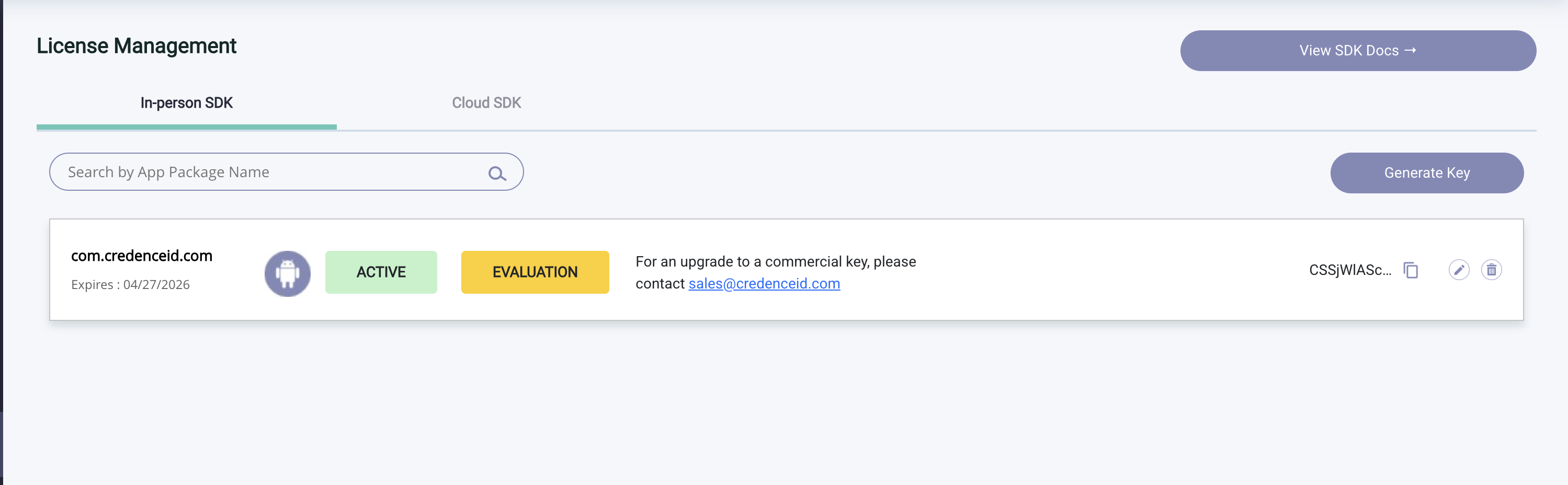
Generate Cloud SDK Key for Remote Verification
Navigate to License Management
After logging in, open the License Management from the top navigation.
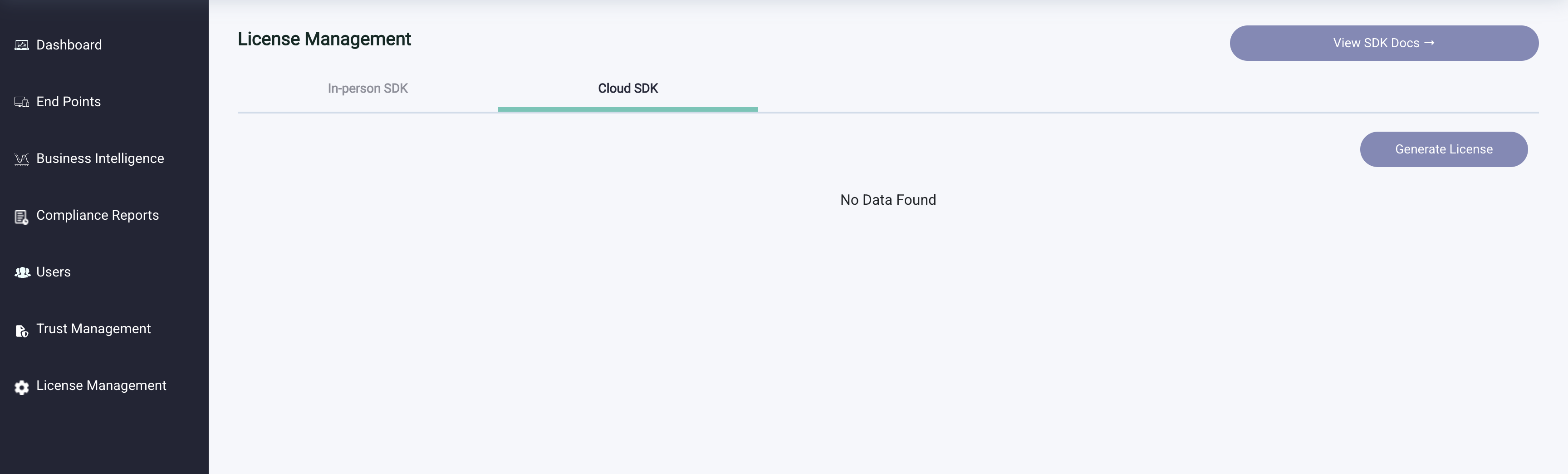
Start the Key Generation Process
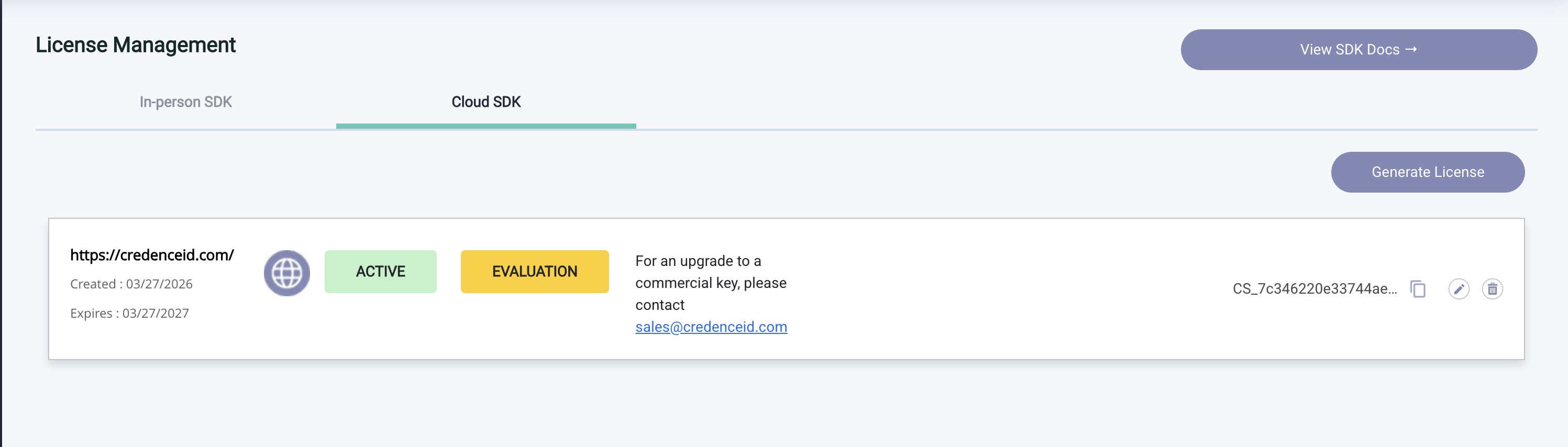
In the Cloud SDK tab, click Generate Key to begin the key generation process.
Enter Domain Name
Enter the registered domain. This must be unique to your account and will be tied to the generated Cloud SDK key.
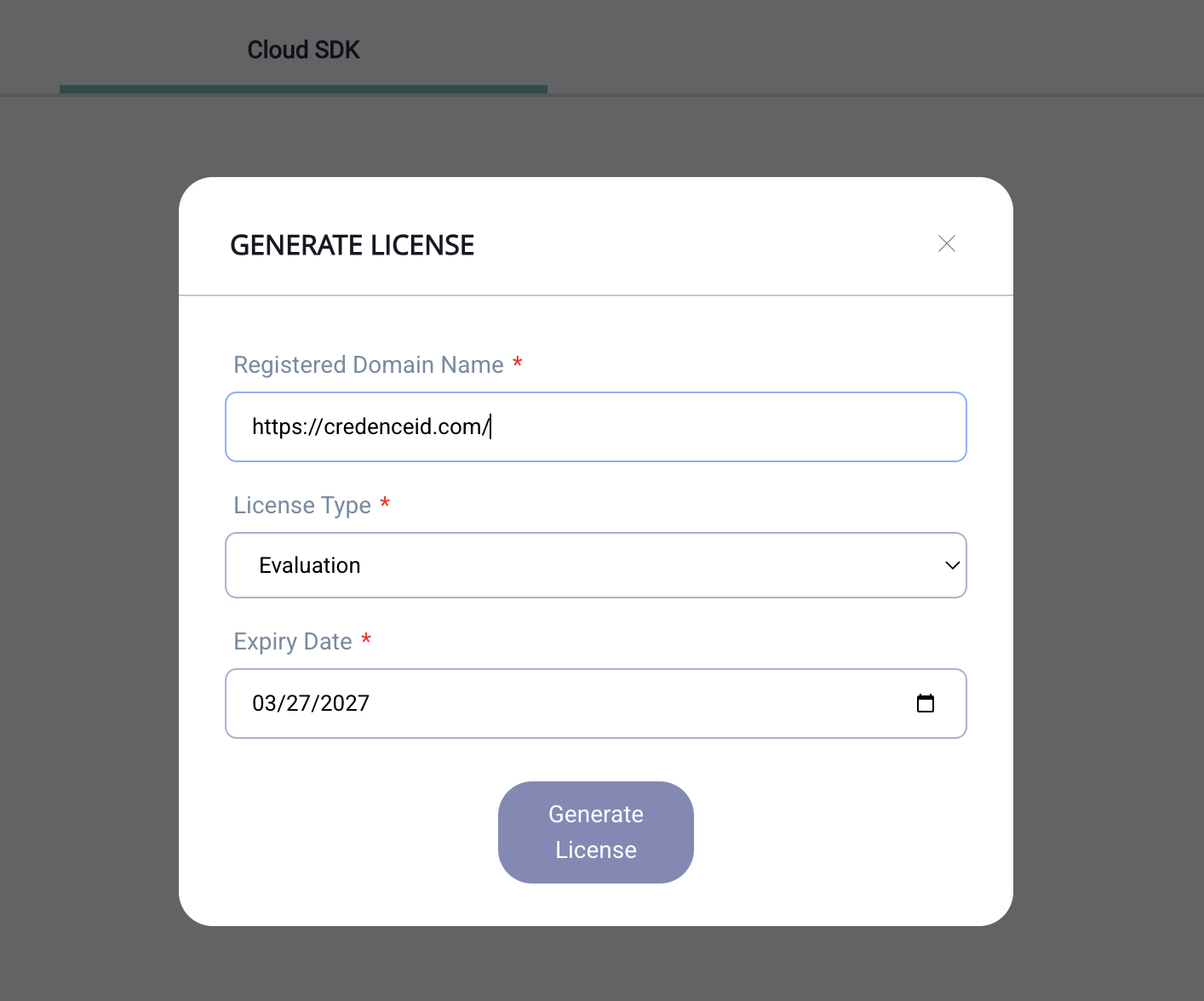
Generate & Store the Cloud SDK Key
Click on Generate License. Once the process completes, your Cloud SDK key will be displayed. Copy and securely store this key — you will need it to authenticate remote verification requests from your server.
Get your Profile ID
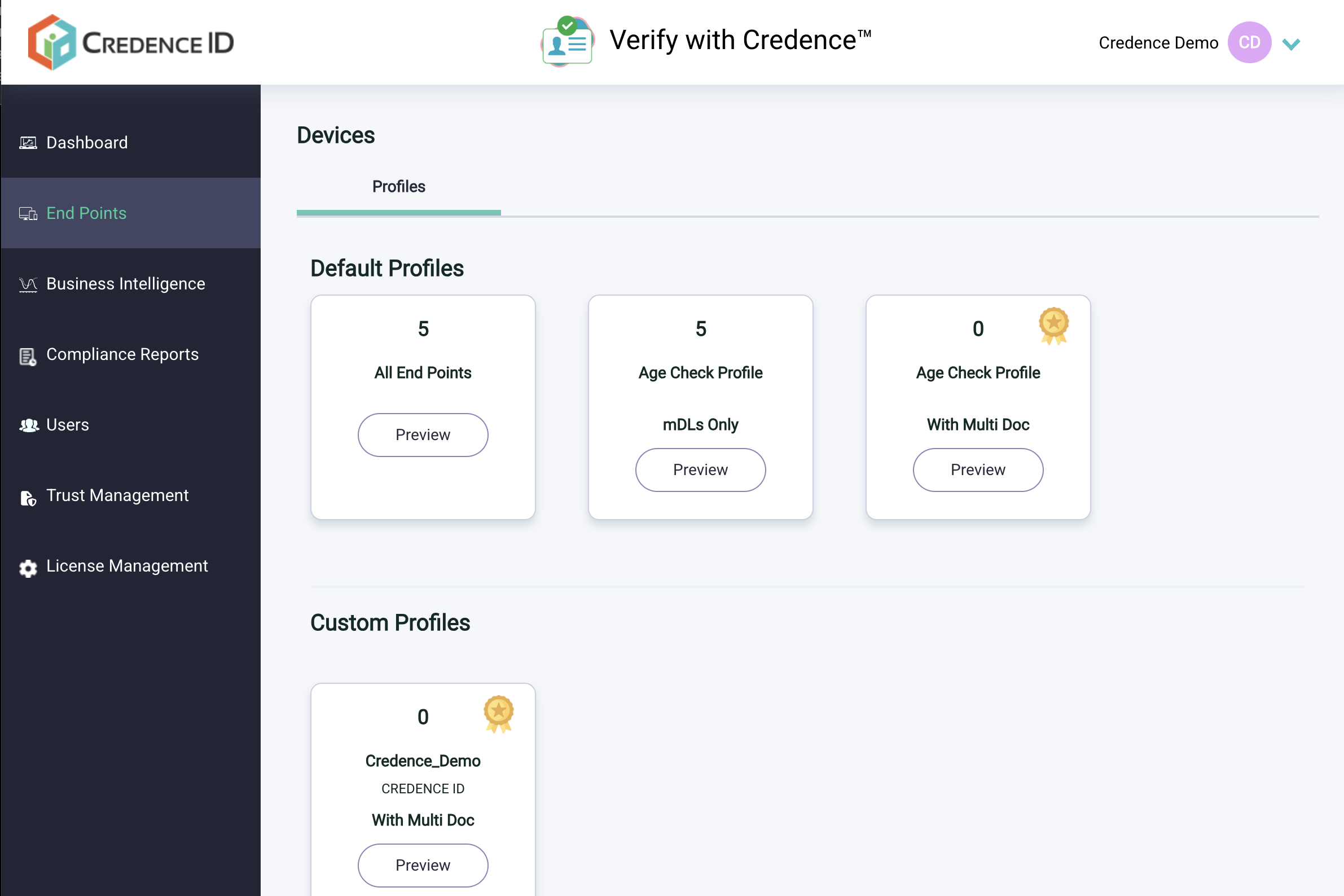
After logging in, click on End Points from the top navigation.
Get Profile ID
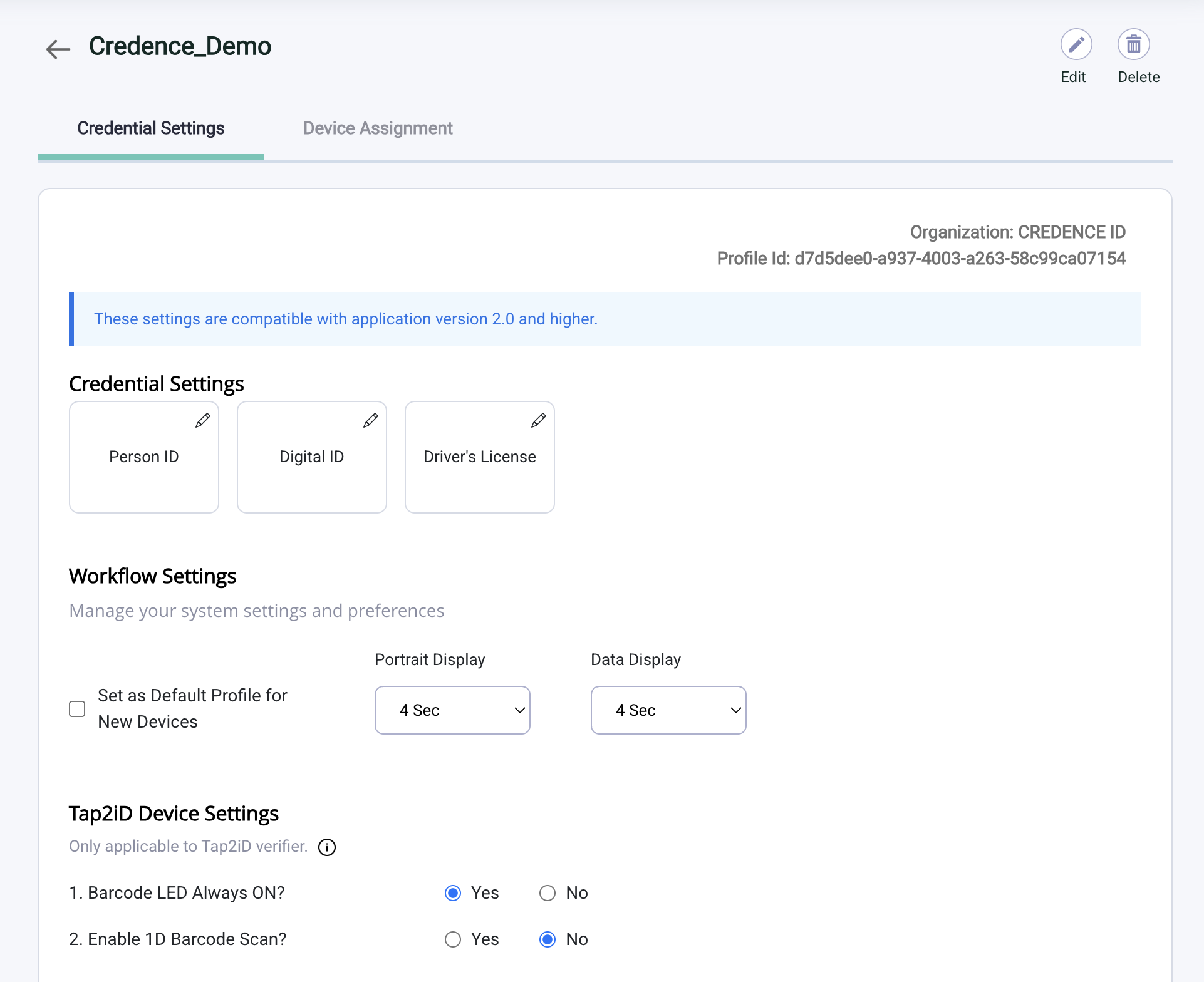
Go to the profile where you want to perform the remote transaction and copy the Profile ID.
Proceed to SDK Integration
Once your SDK license key is generated, return to the SDK documentation to integrate it into your application.