Generate Cloud SDK License Key
Generate the license key and find your Profile ID for the Cloud SDK.
Generate Cloud SDK License Key
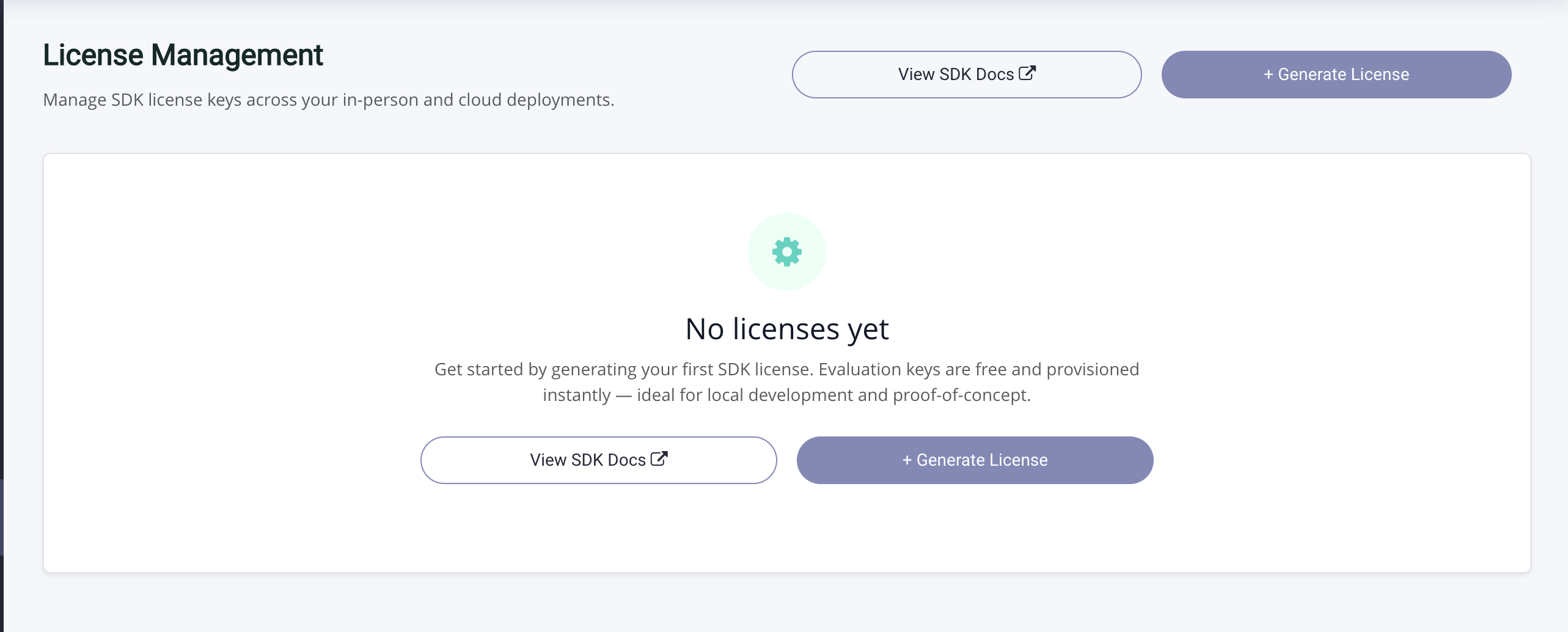
Open License Management
After logging in, open License Management from the top navigation and click on "Generate License".
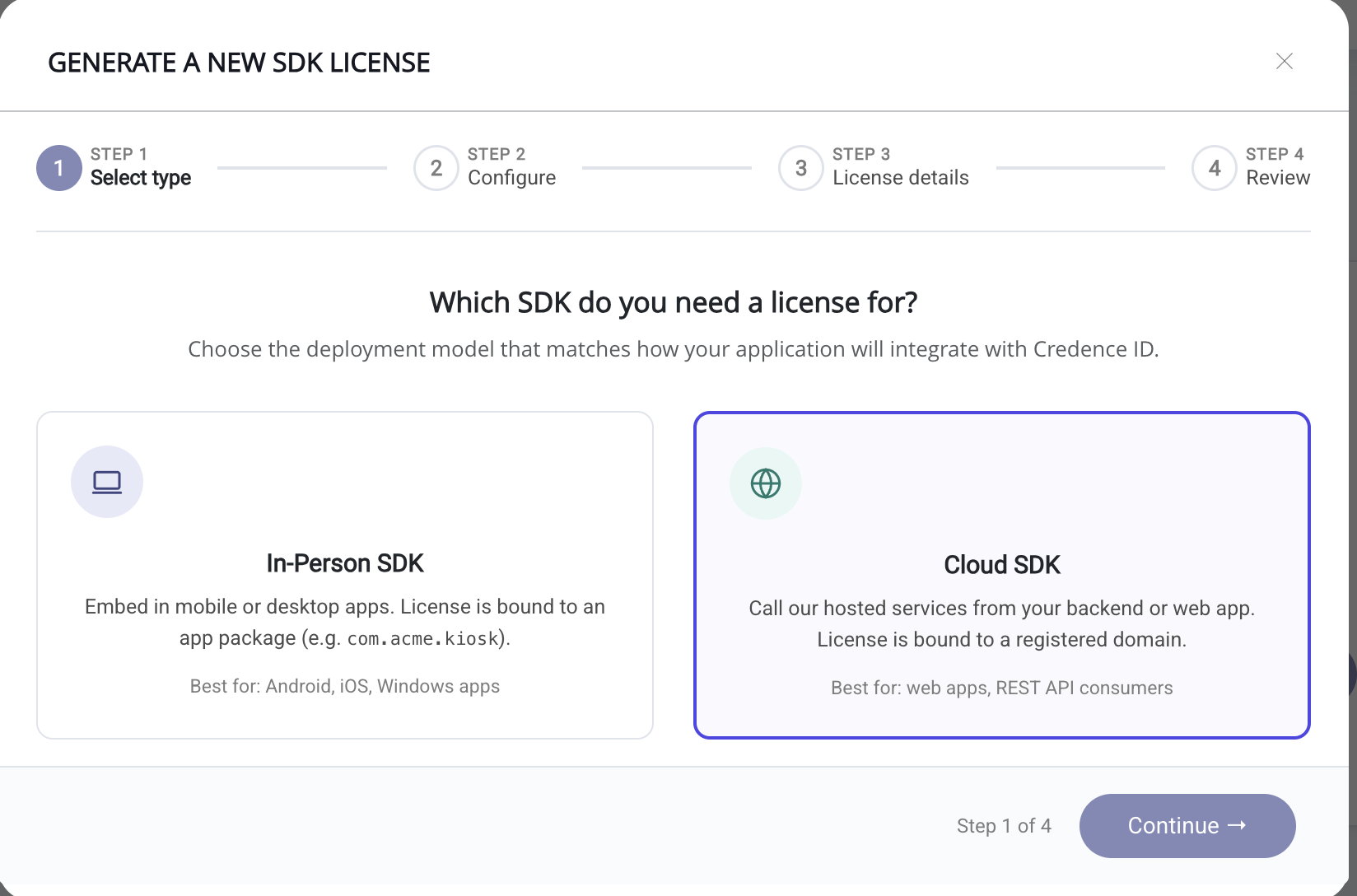
Select Cloud SDK
Pick Cloud SDK if you have a hosted service running on a backend or web app.
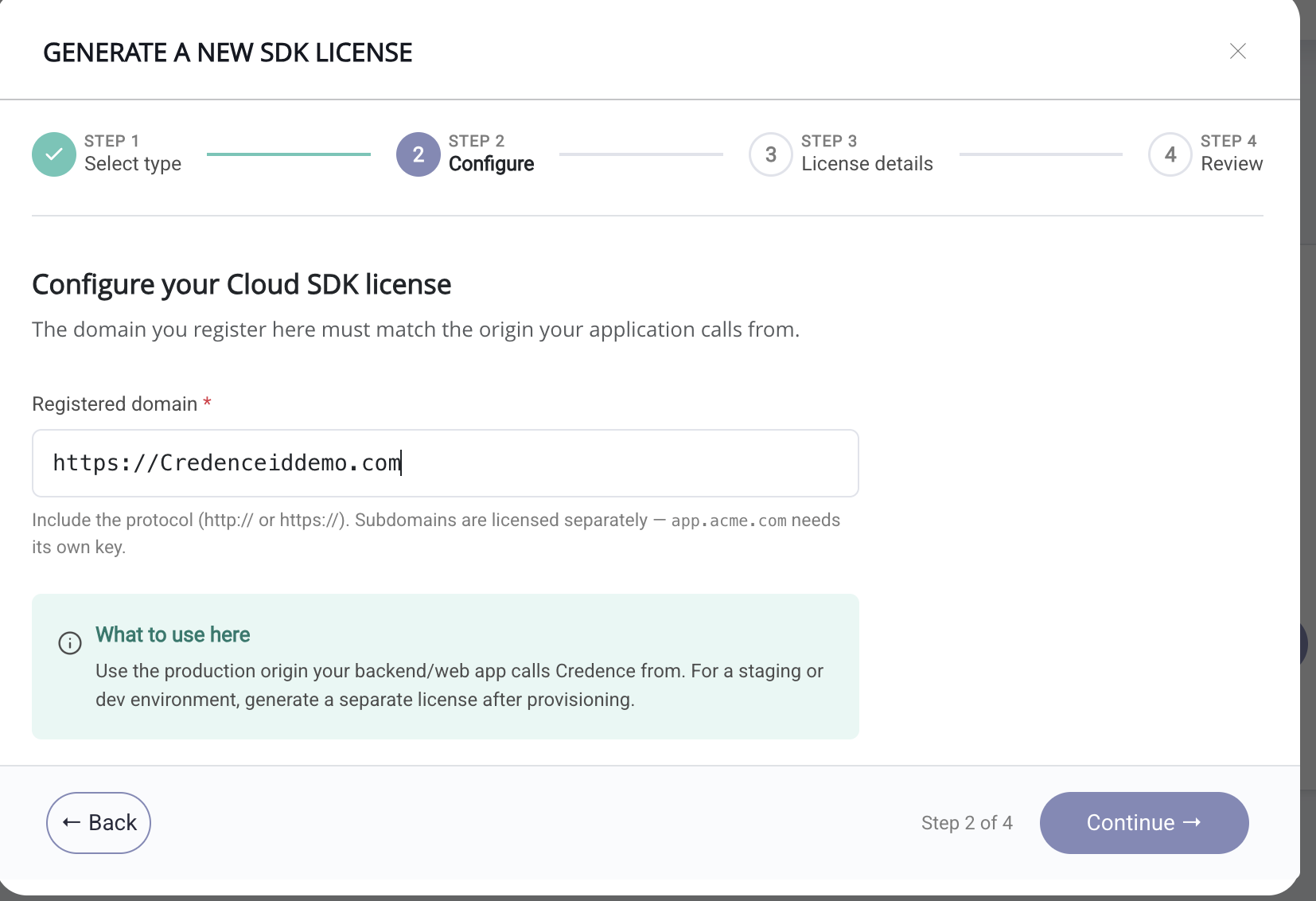
Register Domain Name
In Verify with Credence, each license has an allowed-origins list. Add every domain you'll call the Cloud SDK from to that list. On every API call, the browser sends the full origin (scheme + host + port) in the Origin header, and the server rejects the call if it doesn't match an entry in the list.
Subdomains count separately. https://credenceid.com and https://alpha.credenceid.com are different origins; adding one does not cover the other.
Calls from an unregistered origin return 403 DOMAIN_MISMATCH. If verification works in one environment but fails in another, compare the Origin header against the allowed-origins list in the portal. That's almost always the cause.
http://localhost:8080 and IP-based origins are rejected. For local development, expose your dev server through an HTTPS tunnel and register the tunnel's public URL.
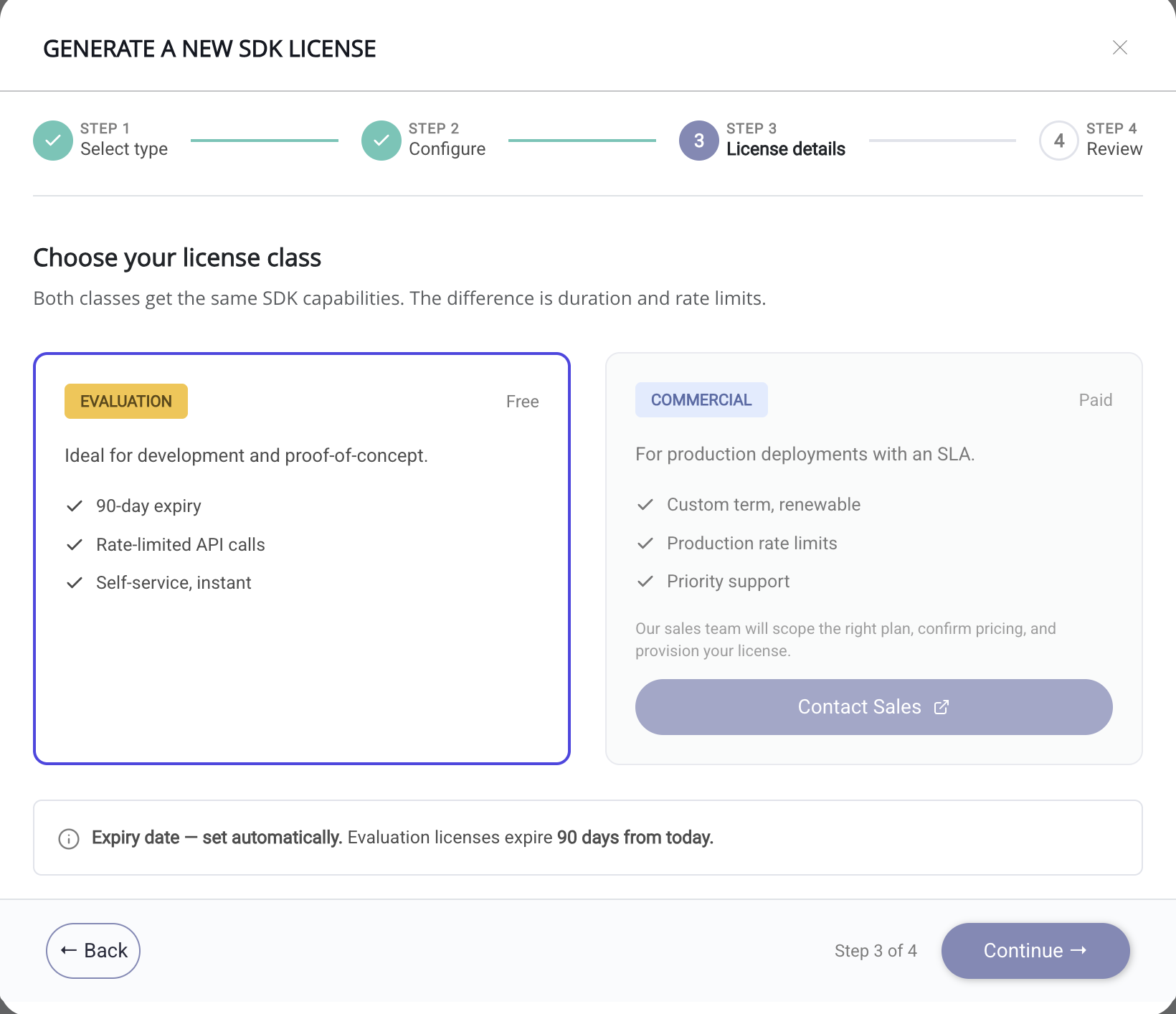
Choose License Type
You'll see two license options: Evaluation and Commercial. Evaluation is free for 90 days. Commercial is not available for self-service selection. Select Evaluation and click Continue.
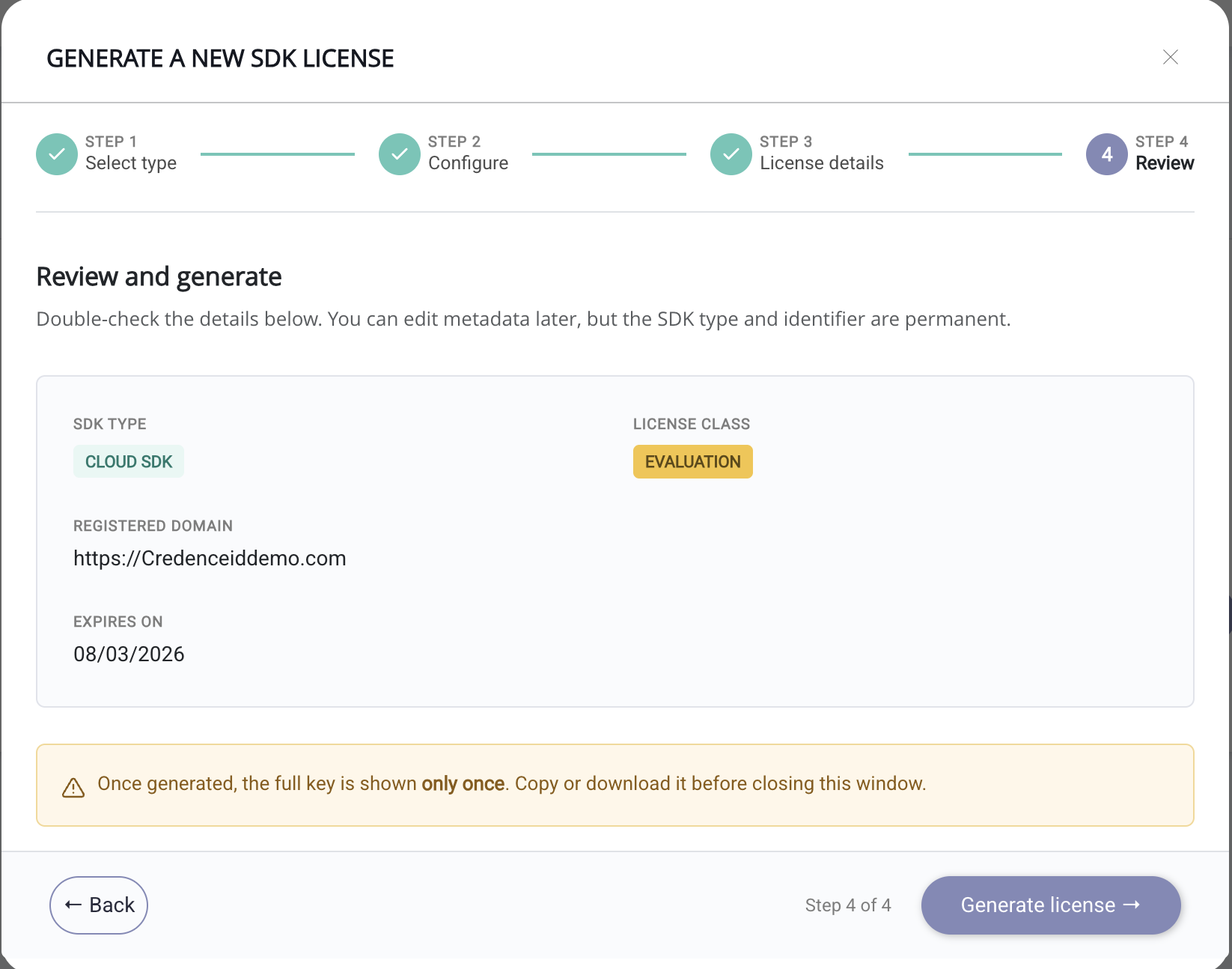
Review and Generate
Review your selections and click Generate License.
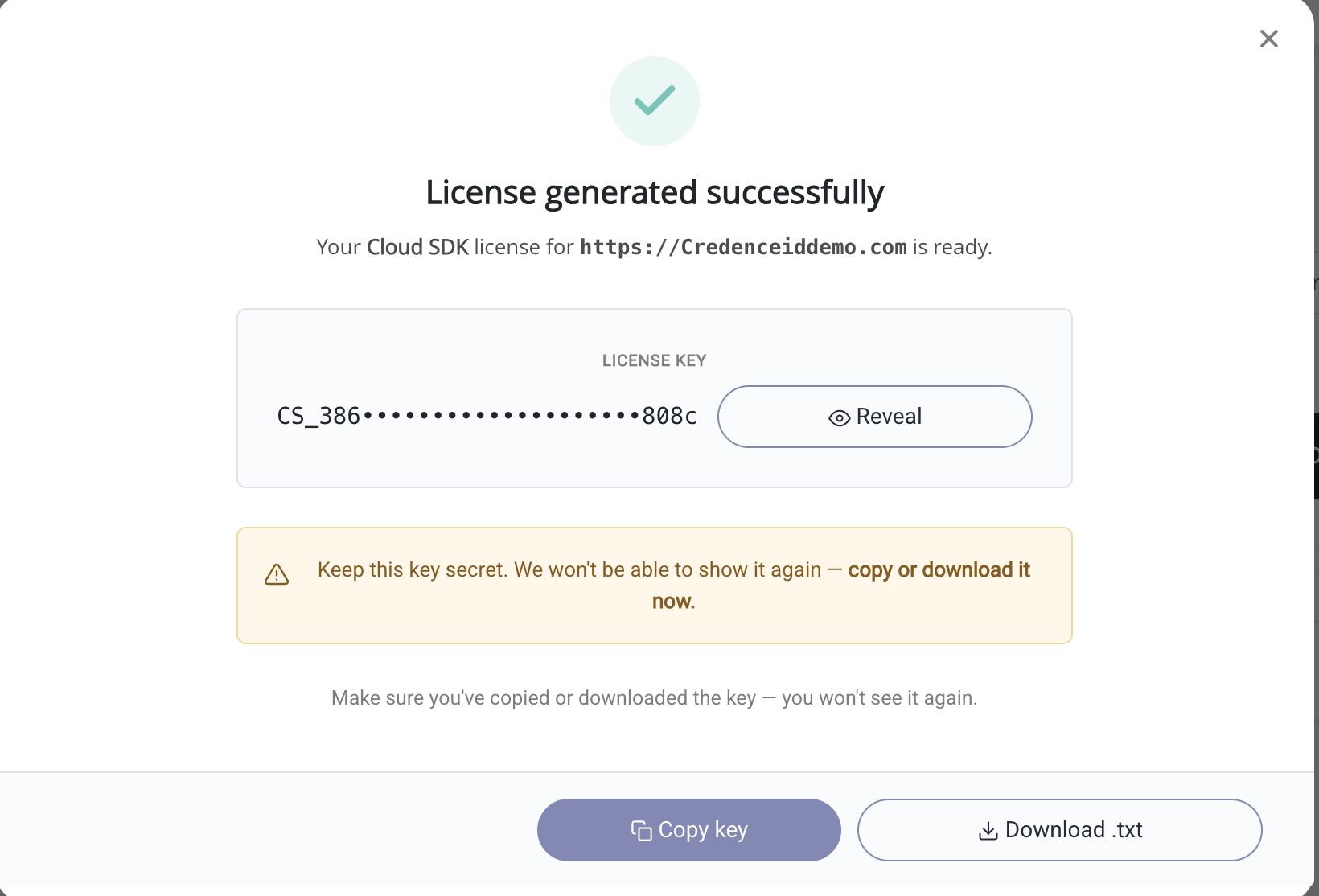
License Generated
Your license key is generated. Copy it or download it from this screen.
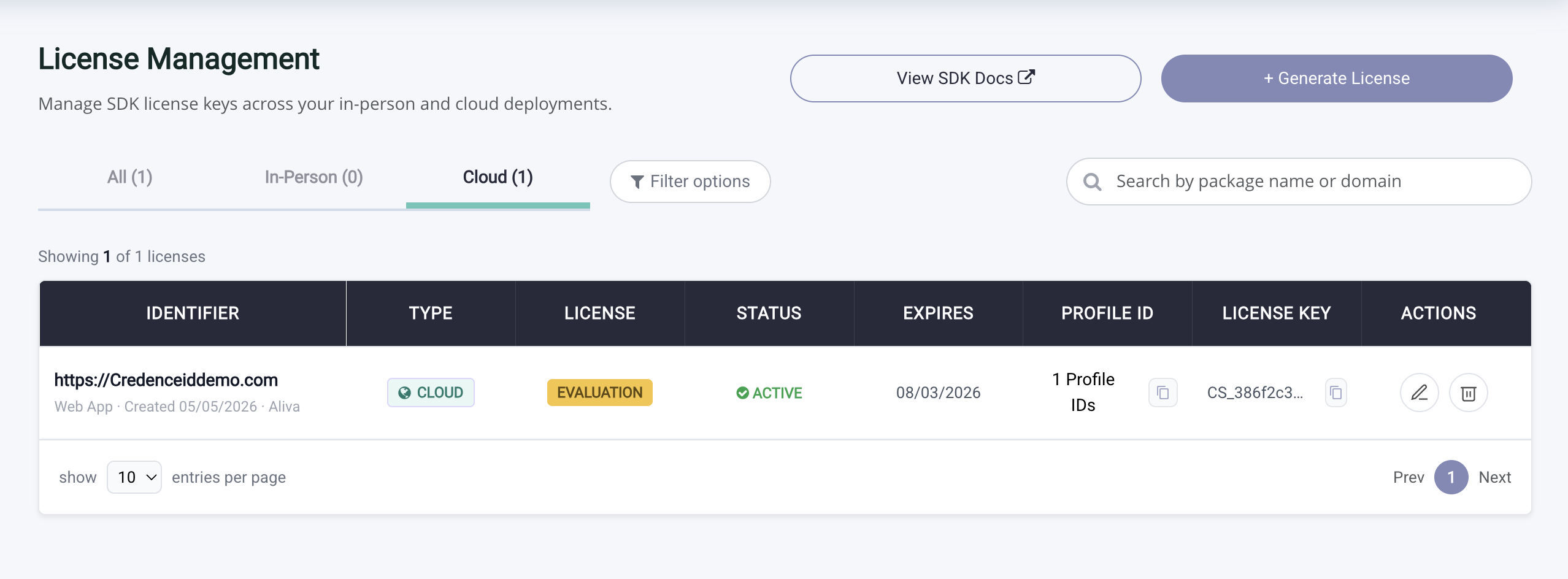
View Generated Licenses
Your generated license is listed under the Cloud tab in License Management, as shown below.
What a Profile is
A profile is a named bundle of verification settings: which credential types to request, which attributes to extract, which issuers to trust, and the verification rules to enforce. One license can have many profiles (e.g. a minimal age_over_21 profile vs a full KYC profile).
Switching profiles requires no code change. Pass a different Profile ID to POST /v1/setup. The Profile ID is a UUID shown on the profile's detail page in the portal.
How to find your Profile ID
- Sign in to Verify with Credence (VwC).
- Open License Management from the navigation.
- Select the Cloud tab. Your Cloud SDK licenses appear in the table.
- Find the row for the license you're integrating with and click Copy in the Profile ID column.