How to Verify a Mobile Driver’s License (mDL)
Mobile driver’s licenses are here. Whether your customers present an mDL through Apple Wallet, Google Wallet, Samsung Wallet, or a state app, your business needs to know how to verify them, securely and in seconds.
March 2026The Shift from Looking to Verifying
For decades, ID checks relied on a manual “best guess,” where staff squinted at plastic under a flashlight to find a hologram. Unlike physical cards, a Mobile Driver’s License (mDL) is virtually impossible to scam. It relies on digital signatures from issuing authorities that are verified electronically and cannot be spoofed by screenshots or high-quality fakes.
By moving from “looking” at an ID to “verifying” it, businesses eliminate the human error inherent in manual checks and gain absolute certainty in every transaction.
Where mDLs Live: Digital Wallets
Before you can verify a mobile driver’s license, it helps to understand where they’re stored. An mDL lives inside a digital wallet on the holder’s smartphone. There are two main types:
Native device wallets. Apple Wallet, Google Wallet, and Samsung Wallet are built into the phone’s operating system. They store mDLs alongside payment cards and boarding passes, and use the device’s secure hardware (like the Secure Element or TEE) to protect credential data.
State-issued apps. Some states offer their own apps for holding mDLs, such as CA DMV Wallet, GET Mobile (Utah), Louisiana LA Wallet, and several others. These are standalone apps issued by the state DMV.
Regardless of where the mDL is stored, the verification process follows the same international standard: ISO/IEC 18013-5.
How mDL Verification Works
There are two ways a mobile driver’s license can be shared with a verifier:
NFC Tap
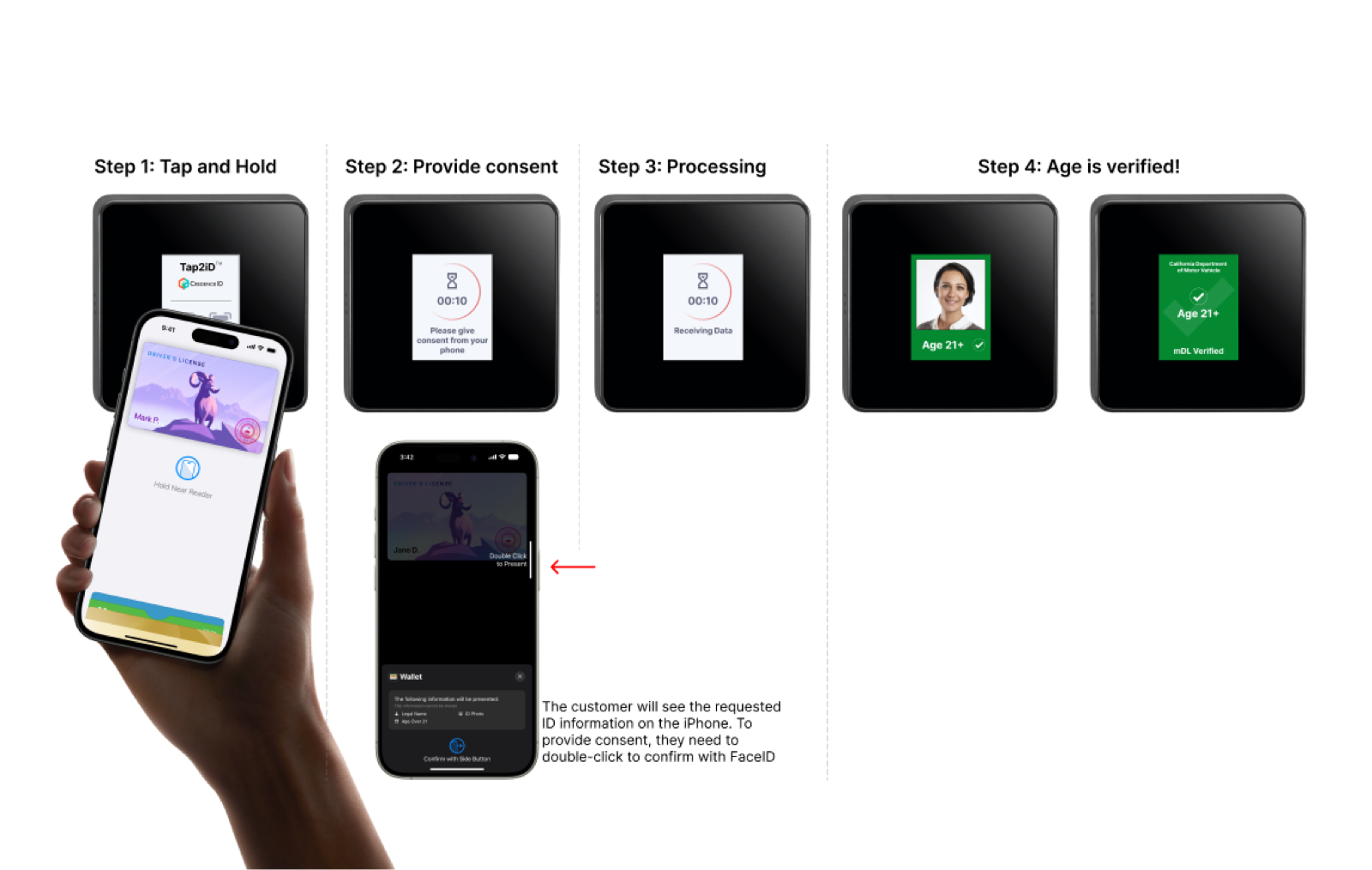
The holder simply taps their phone against a verifier. The mDL data transfers automatically in seconds. This is the method used by Apple Wallet, Google Wallet, and Samsung Wallet.
QR Code Scan
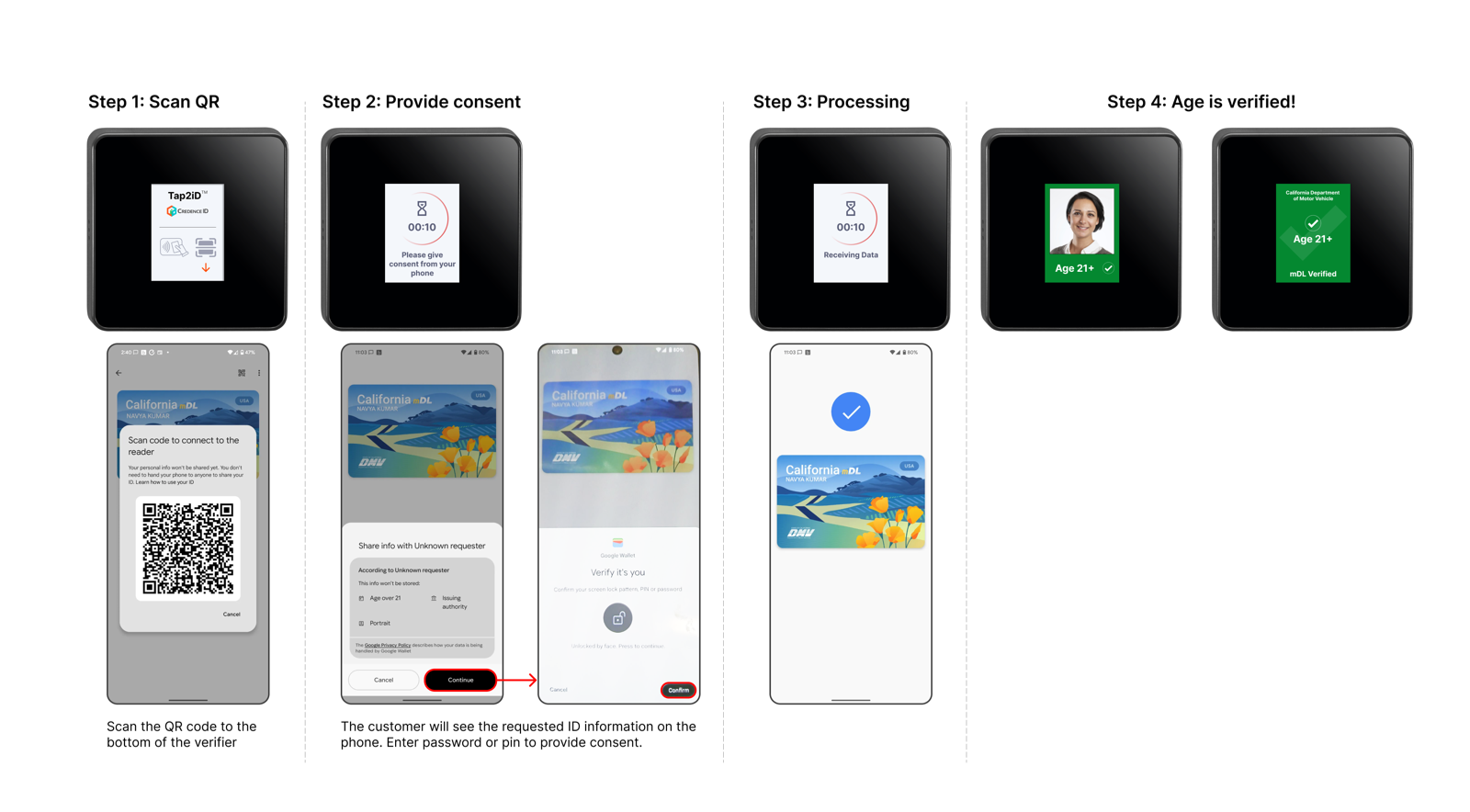
The holder opens their wallet app, which displays a QR code. The verifier scans it to receive the mDL data. State apps like CA DMV Wallet and GET Mobile use this method.
In both cases, the verifier confirms that the mDL was issued by a legitimate authority and has not been altered. No internet connection is required during verification.
Verify mDLs With Your iPhone (Tap2iD Mobile)
You don’t need specialized hardware to start verifying mDLs. The Tap2iD Mobile app turns any compatible iPhone into an mDL verifier. All ISO-compliant mDLs stored in Apple Wallet, Google Wallet, Samsung Wallet, as well as state-issued apps, can be verified using Tap2iD Mobile.
Download Tap2iD Mobile™ App and create your profile
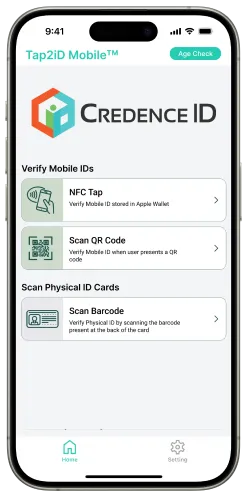
Select NFC Tap button
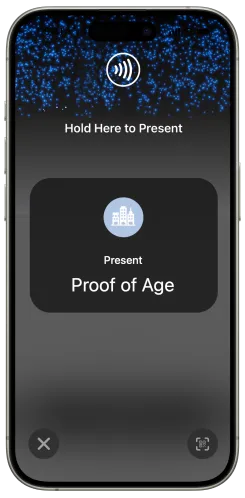
Present your iPhone to the customer and have the customer hold their device near the top of your iPhone
Customer reviews information requested on their iPhone and can confirm or deny
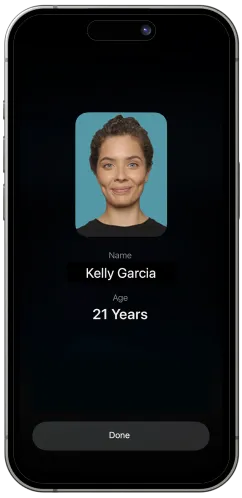
Once the customer has confirmed the information requested by your business, the details will appear on your screen
Verify mDLs With Dedicated Hardware (Tap2iD Verifier)
To bridge the gap between digital credentials and real-world transactions, a verifier needs to “speak” the same language as the digital wallet. While some businesses use smartphone apps for verification, enterprise environments often utilize dedicated hardware like the Tap2iD™ Verifier to ensure a consistent, secure, and professional point-of-interaction.
Dedicated hardware acts as the secure interface between the customer’s phone and the issuing authority’s data.
Physical ID verification:
Have the guest hand you their ID
Using the Tap2iD Verifier, scan the physical ID barcode
The verifier shows if the guest is over or under 21 years old
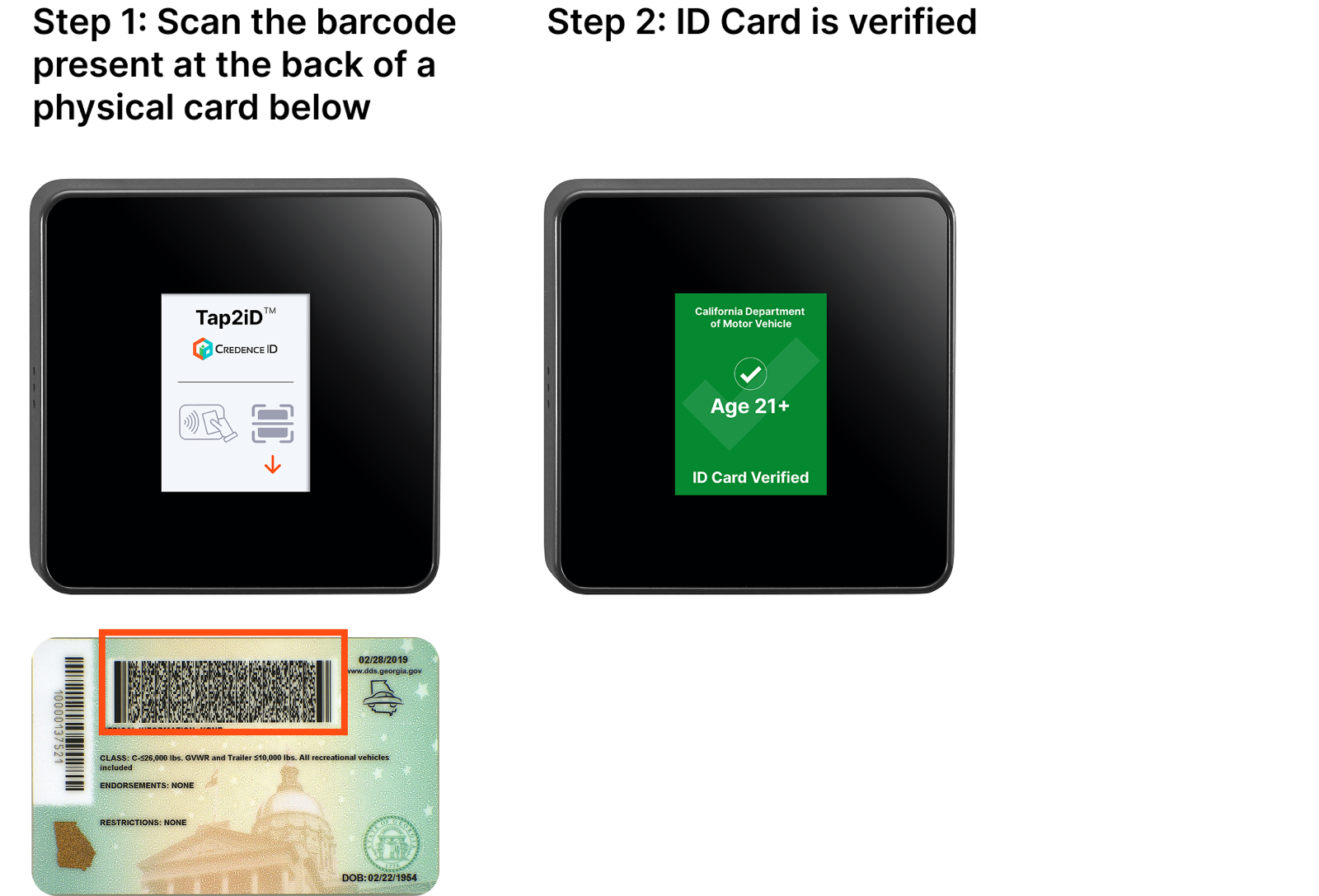
mDL verification via NFC (ID in Apple Wallet)
mDL verification via QR code scan (ID in Google Wallet)
The Tap2iD Verifier handles both physical IDs and mobile IDs in one verifier, making it ideal for venues transitioning to digital acceptance.
See it in action: BMO Stadium Case Study →Supported Wallets & Platforms
The Tap2iD platform supports verification across all major wallet ecosystems.
| Wallet Name | Platform | Supported Features |
|---|---|---|
| Apple Wallet | iOS | NFC |
| Google Wallet | Android | QR, NFC |
| Samsung Wallet | Android | QR, NFC |
| CA DMV Wallet | Android / iOS | QR |
| GET Mobile (Utah) | Android / iOS | QR |
| Iowa Mobile ID | Android / iOS | QR |
| New York Mobile ID | Android / iOS | QR |
| Virginia Mobile ID | Android / iOS | QR |
| West Virginia Mobile ID | Android / iOS | QR |
| Arkansas Mobile ID | Android / iOS | QR |
This list is growing. Check our mDL Issuing-State Tracker for the latest.
Ready to Start Verifying Mobile IDs?
Ready to Verify Mobile IDs?
Explore Credence ID’s digital identity verification platform, purpose-built hardware and software for accepting mobile driver’s licenses and verifiable credentials.